Content Localization
While you are in the editing mode of your website, it is easy to make all of your content available in the secondary language that you have selected.
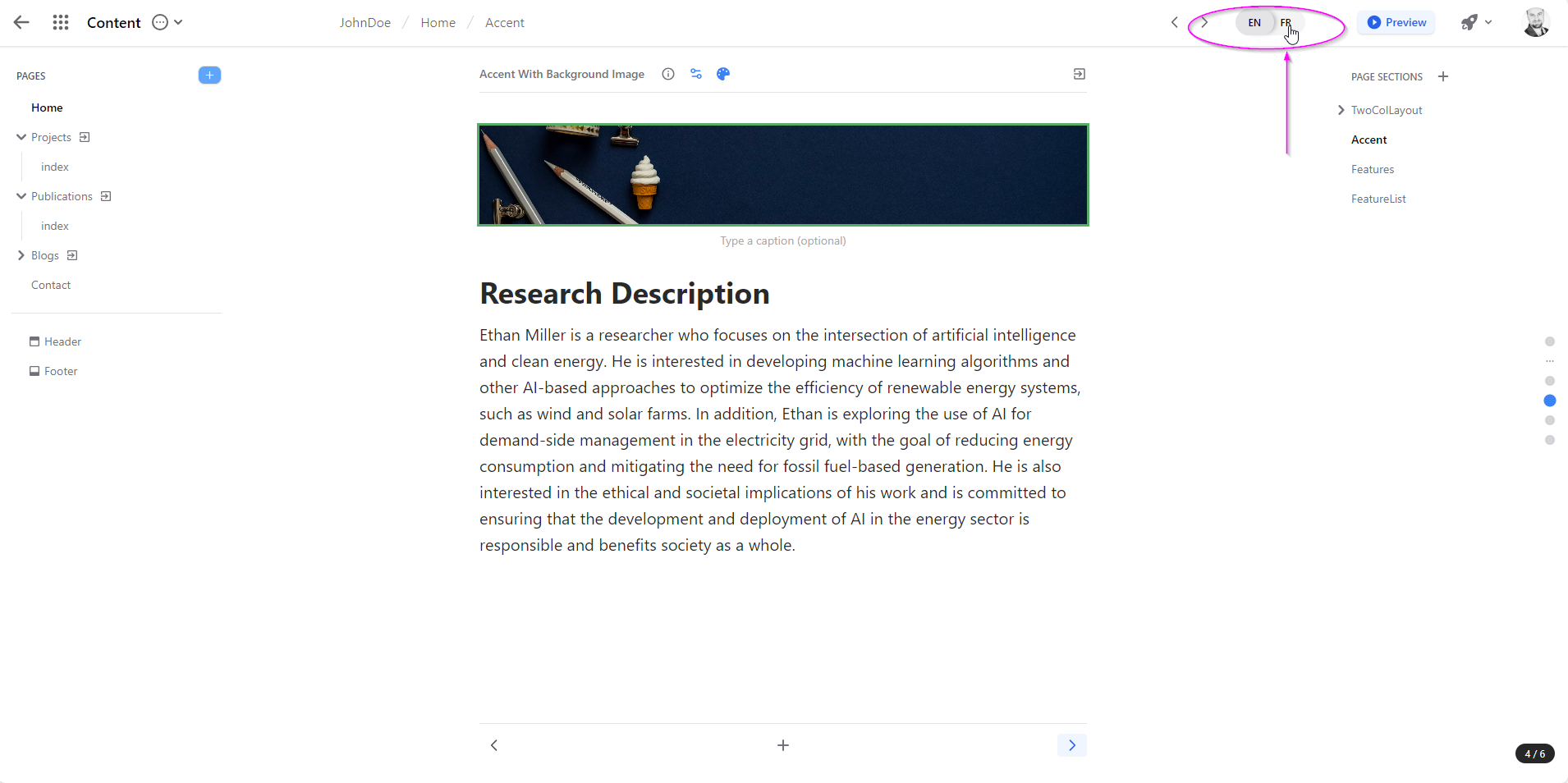
To activate the ‘localization’ of your text, it is as simple of clicking on the other language located in the top menu option.
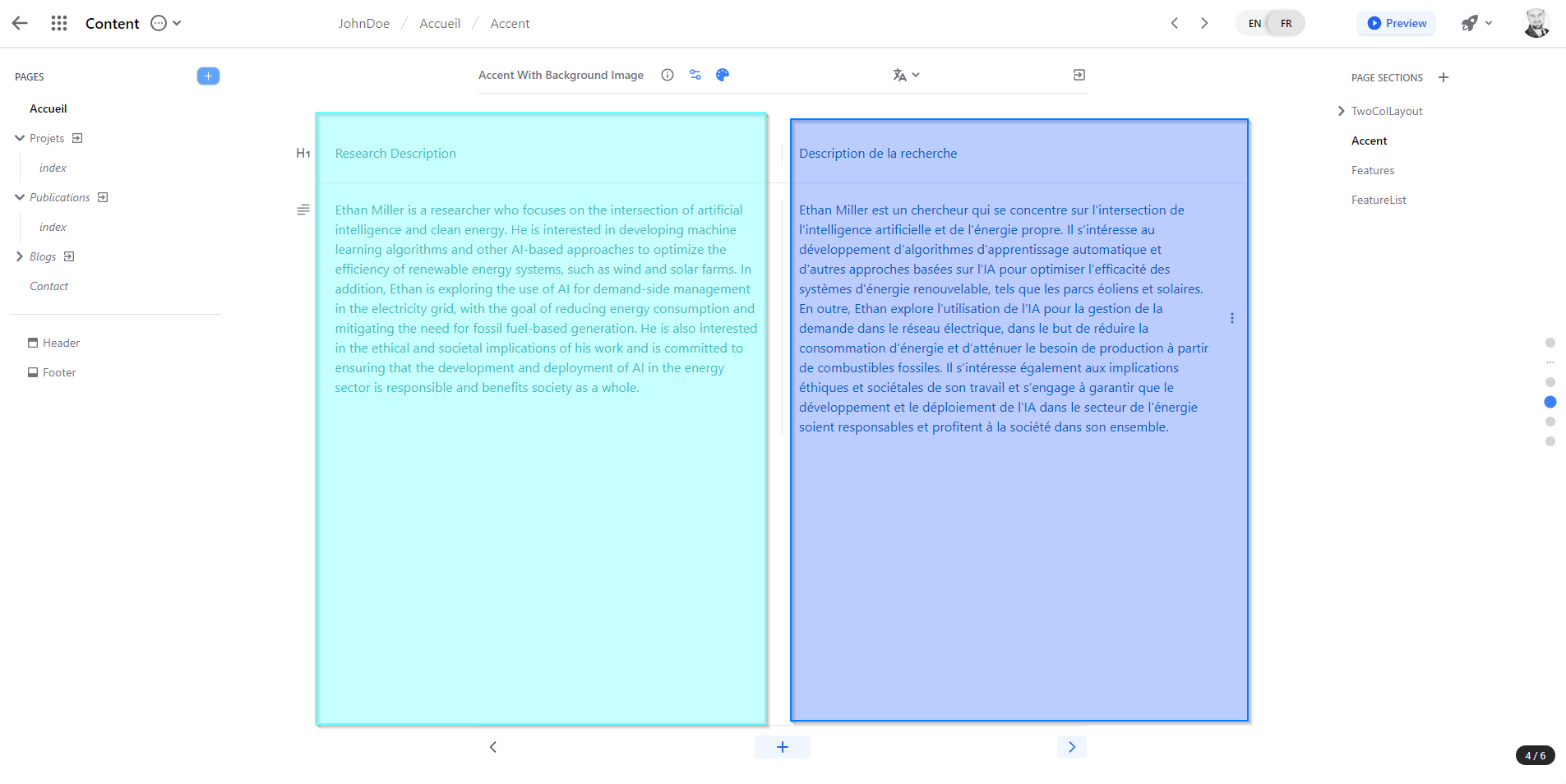
Once clicked, you will see that your main area has been updated where, for your current page section selected in your right panel, you will see your textual content separated into two columns.
On the left is the text that is from your primary language.
On the right is the text that is for your secondary language.
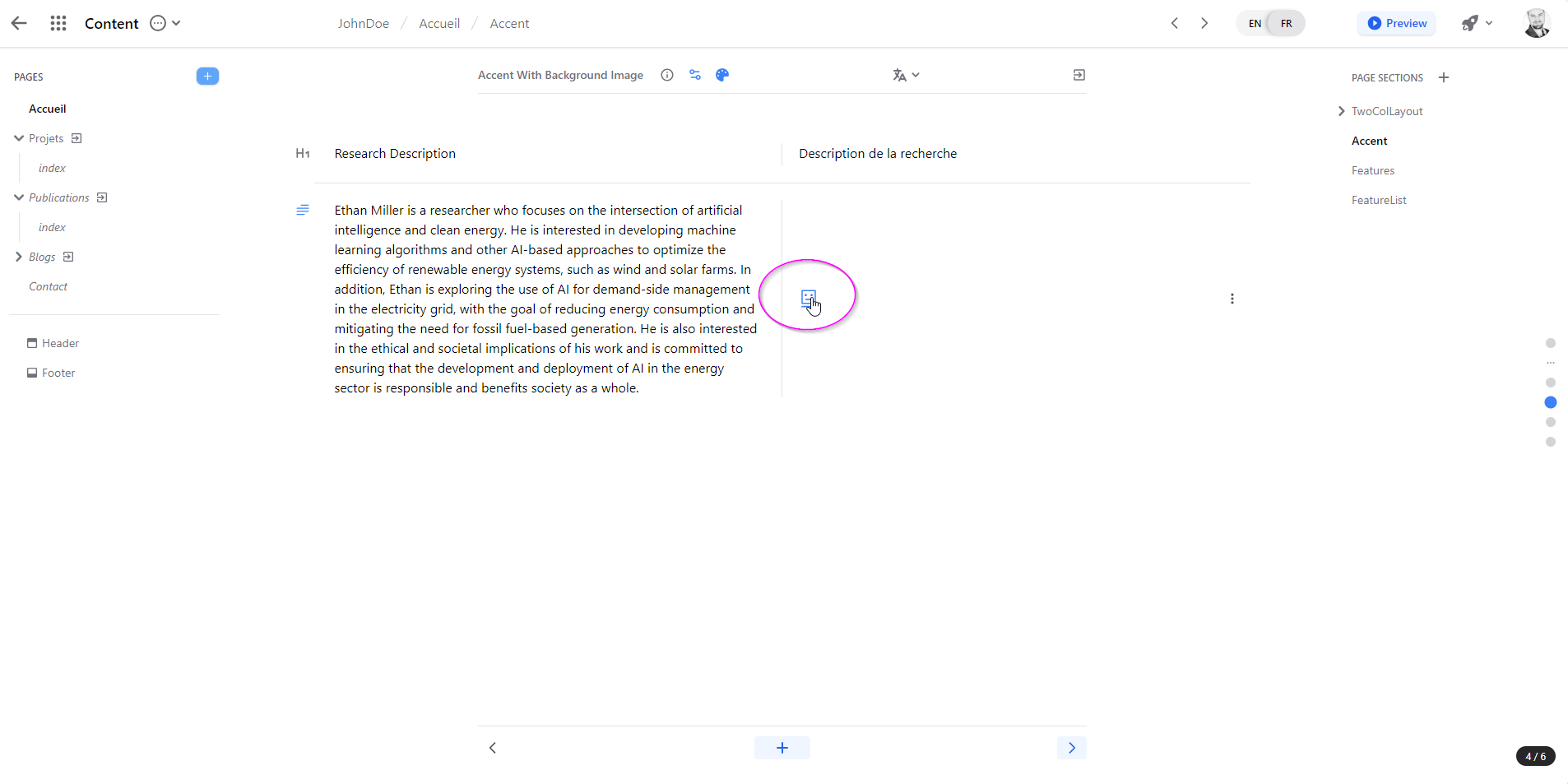
For any new text that has yet to have the equivalent in your secondary language, you have two options at your hand:
The first is to use the built-in ‘machine-translate’ that will take your original text and translate it using a machine translate system.
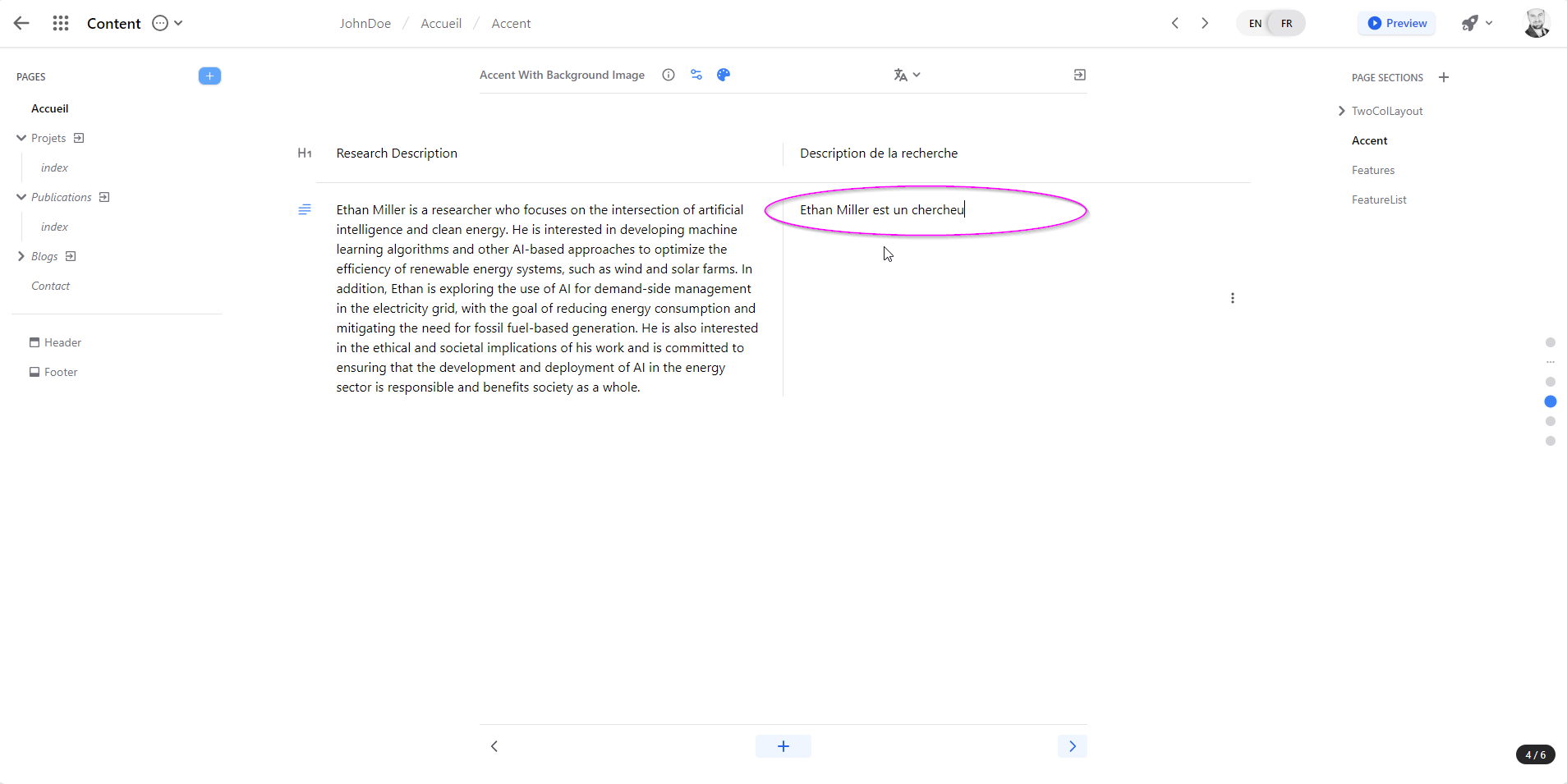
The second option is if you prefer to put yourself the text, you can simply click in the area of the second column and put in the proper text.